Guides: your own apps on your BYD
What is this? Guides that show you how to put your own apps on the screen of your BYD.
Who is it for? Owners who like to tinker with their own car. A bit of courage with technology helps.
How do I start? Read the warning first. Then pick your way: phone, PC or paid service.
Please read first – disclaimer.
All content is for information only, for owners working on their own vehicle. You act at your own risk. Changes to the system may affect the manufacturer's warranty on the infotainment system. We accept no liability for damage, data loss or malfunctions. Adults only, and only on a vehicle that belongs to you.
Safety limit: infotainment only. These guides cover only the multimedia system (infotainment). Keep your hands off anything that touches driving, driver-assistance or display systems (instrument cluster, warning lights, CAN control commands). Such changes affect safety. We do not describe or support them here.
What does not happen here
- We do not host firmware, APK files or anyone else's PDF.
- We do not distribute tools that get around the checking of update signatures.
- We do not describe anything that affects other people's vehicles or safety systems.
We explain the process in our own words and link to the community's original sources. You manage the tools and downloads yourself.
The way in three steps
The screen in the BYD (the system is called DiLink) is an Android device. With the developer access (technical term: ADB, "Android Debug Bridge") you can install your own apps on it. Roughly, it works like this:
- Open the developer menu.For this you need an unlock code for your car. It is worked out from the last digits of the device ID (for example with the app Electro, see below).
- Switch on the "Wireless ADB" switch.You find it in the test or developer tools. After that, the car can be reached over Wi-Fi.
- Install the app.Connect your phone or PC to the car's Wi-Fi (
adb connect) and put the app on the car (adb install).
Depending on your model and software, you may first need a downgrade. That means an older software version where the way is still open. The details differ by model (for example Seal, Seal U, Atto 2, Dolphin). Always read the community's current documentation for your model.
Important about downgrades: A downgrade can reset settings. It does not work with every software version, and it cannot always be undone. Newer factory software can close the way. Before you start, check which software version your car has and whether a downgrade makes sense at all.
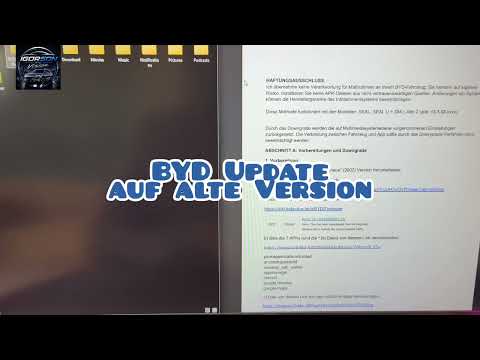
Video: downgrade to an older version
 Clicking loads YouTube (Google)
Video "BYD Update auf alte Version" (BYD update to an old version, in German), with thanks to the author IgorsonTVvision. We do not mirror anything. The video stays on his YouTube channel and only loads after you click.
Choose your way
For step 3 you need a device that can do ADB. There are three options:
📱 Without a PC: with an Android phone
Example: Bugjaeger (not yet tested by us on a car, not a recommendation). This Play Store app brings ADB to your phone, so you do not need a laptop.
- Connect the phone to the car's Wi-Fi (or to the same network as the screen).
- Wireless ADB is switched on in the car (see above). The car can then be reached on the network, usually on port 5555.
- In Bugjaeger, choose "Connect device over network/WiFi" and enter the car's address with port 5555.
- Pick your app file (APK) on the phone and tap "Install". Done.
Another option is a USB-OTG cable from the phone to the screen. Bugjaeger then finds the device directly.
💻 With a laptop (Windows, macOS, Linux)
- Download the "Android platform-tools" from Google (the official ADB package) and unzip them.
- Connect the laptop to the car's Wi-Fi. In the platform-tools folder, open a terminal or command prompt.
adb connect <car-address>:5555adb install your-app.apk
🍏 iPhone
To be honest: An iPhone cannot run ADB by itself (no USB host, no adb program). Use a laptop (way 2), borrow an Android phone for a short time (way 1), or use the paid service below. It needs no commands at all.
💳 Paid service: BAO Remote-Unlock (no commands)
If you want to skip the commands, or you have an iPhone, you can use a paid remote service. With BAO, a technician helps you in a live session: you sit in the car, follow the instructions on the screen and scan a QR code that the infotainment system shows. There is no hardware. Nothing is plugged in or shipped. It is a guided online session.
- Provider: BYD/DENZA ADB Unlocking Service (shop.baolab.au)
- Tiers according to the provider: Standard ~149 AUD · Priority ~169 AUD · Advanced ~300 AUD
- The provider officially names DiLink 5.0 and newer. In the community, it also worked on older systems (for example DiLink 3.0). It is best to ask the provider directly.
Please note: BAO is an independent, paid third-party provider (not connected to BYD/DENZA). We are not connected to them and earn nothing from it. The provider itself points out that ADB can affect warranty, service, diagnostics and software updates. Check beforehand whether it fits your model and software version.
Tools and sources from the community
This summary is based, among other things, on the guide by edi_man ("BYD-DownGrade-ADB-atvTool") and on public projects that have studied the system. You find tools, firmware and app files at the respective sources, not with us.
Our own tools
- Panoptes – our app for the screen in the car: camera guard, trips, charging costs. It needs exactly this developer access.
- EV Cockpit – a program for your PC: charge level, honest range, wall box. With a step-by-step guide.
- Route planner (German) – a route with charging stops and the cheapest price per charger. Prices mostly from official sources (E-Control), with profiles for many BYD models.
Unlocking and ADB
- Electro (br.com.rory.electro) – works out the code for the developer menu from the last digits of the device ID. With it you reach the "Wireless ADB" switch. It can also show the cameras live.
- Shizuku – gives apps extended rights without root (it is started once via ADB).
Dashcam and cameras
- Overdrive – open-source dashcam/sentry app for DiLink 3. It uses the 360° cameras and saves locally (no cloud).
Instrument cluster (driver display)
- DashCast – mirrors apps to the driver display, with touch mirroring. DiLink 3.0.
Your own apps (without root)
- wheregoes/byd-apps – small apps for DiLink 3.0: your own door sounds, AVAS sounds (30+ templates), Cabin (interior/pet monitor), BYD Probe (diagnostics/CAN bus). Installation by USB stick or ADB, without root.
Documentation and background
- wheregoes/byd-dolphin-hacking – detailed technical documentation (DiLink 3, Android 10): installing apps, ADB, camera, CAN, without root.
- wiki.defective.tech/BYD – community wiki on firmware and how to proceed.
- Forums and Discords of the model communities (Seal, Atto, Dolphin) for current steps.
About the tools: These are all third-party projects or open-source community projects. We do not host them and give no guarantee. Check where they come from, their licence, and whether they fit your model and software version. Thanks to all the developers for their work!
Do you have a good, clean guide for your model? Send it to us, and we will check it and link to it. Please do not upload firmware or APK files, only knowledge and links.